AV Troubleshooting – Frequently Asked Questions (FAQ)
1. The screen is blank — what should I do?
- Check that your laptop is connected via USB‑C (fully inserted).
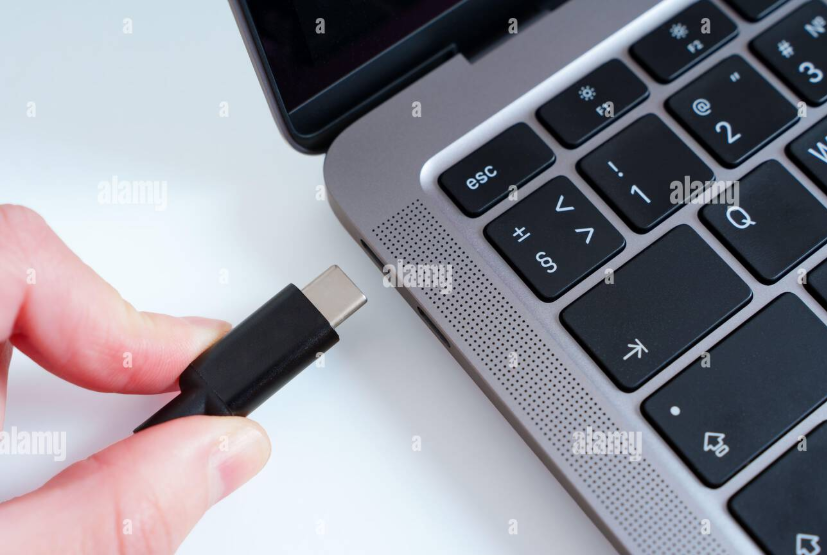
- Tap Presentation Mode or Meet Now on the room’s touch panel. Or on Teams
- Ensure the projector/TV is powered on.
- Try pressing Source or Input on the TV remote if applicable.
2. The camera is not showing up in Microsoft Teams or Zoom.
- Unplug and replug the USB‑C cable.
- In Teams, go to Settings → Devices and select the room camera. ( Logitech )
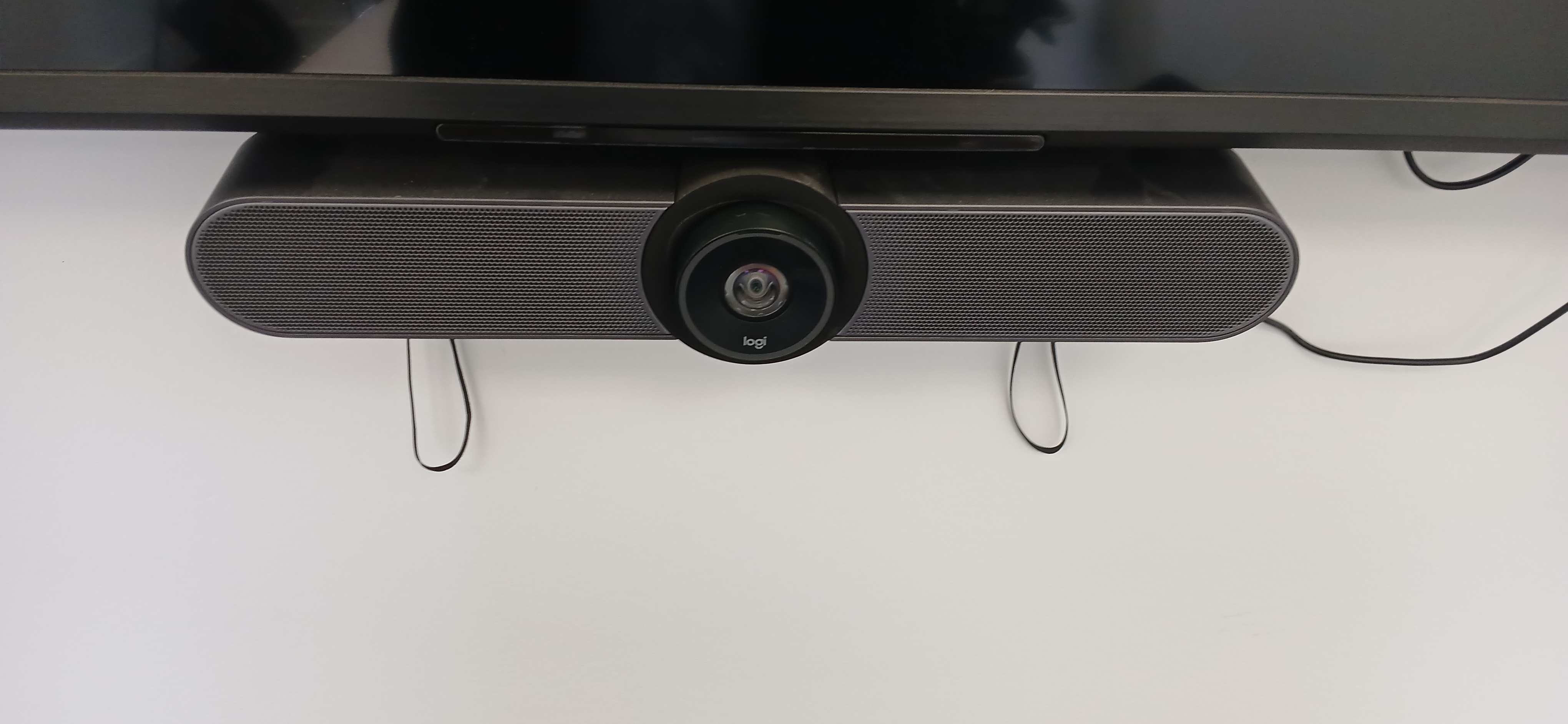
- If using the in‑room PC, restart Teams.
- Check the AMX panel to ensure the camera is not disabled.
3. People in the meeting can’t hear me.
- Confirm your device/mic selection in Teams:
Microphone → Mic Logitech - Check the mute status on the AMX panel or logitech controller
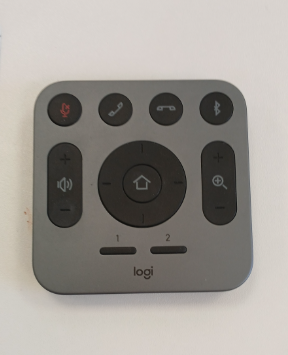
- Make sure no other device in the room (e.g., second laptop) has a mic active.
- If using table mics or ceiling mics, ensure they are positioned correctly.
4. I can’t hear the people online.
- Select the correct speaker in Teams:
Speaker → Logitech Audio - Increase volume on the Logitech control panel, or on your Laptop
- Check that the TV/projector speakers are not muted.
- If connected via laptop, ensure your laptop volume isn’t muted.
5. There is an echo or feedback noise in the room.
- Make sure only ONE device in the room is joined with audio.
- Mute your phone if you’re also in the call.
- If hybrid participants complain of echo, check if a second laptop is connected with its mic or speakers enabled.
6. Wireless presentation isn’t connecting.
- Make sure you are on the correct room wireless option on the entry panel.
- Enter the pairing code exactly as shown.
- Restart sharing and reconnect to the room wireless system.
- If issues persist, use USB‑C as a fallback.
7. Teams says “No audio devices found”.
- Disconnect and reconnect USB‑C.
- Restart Microsoft Teams.
- If using the in‑room PC, restart the PC.
- Check the Logitech control panel — the room system may be in the wrong mode.
8. The projector won’t turn on.
- Press Display On or Projector On on the AMX panel, Or on the Monitor
- Some projectors require a warm‑up period (15–30 seconds).
- Ensure power cables and wall switches are on.
- Try another HDMI/USB‑C cable if available.
9. My laptop is connected but the audio or video looks delayed.
- Hybrid latency often occurs if multiple devices are connected.
- Disconnect extra laptops or smartphones from the meeting.
- Try closing background apps on your laptop.
- For heavy content (video playback), using the in‑room PC may improve performance.
10. Who do I contact if nothing is working?
- IT Helpdesk: service@presidio.com
- On‑site AV Support (PAVs): support@pavs.ie
- For urgent event‑day issues, contact Facilities or It or below
- Emergency Contacts
AV Troubleshooting
Pavs 01 4148230
(087) 9367970
(089) 4488044
Contact Gerry or Dean or Mairead
Presidio Phone : 01 2075700
Contact Vikas or Branimir onsite
Was this article helpful?
That’s Great!
Thank you for your feedback
Sorry! We couldn't be helpful
Thank you for your feedback
Feedback sent
We appreciate your effort and will try to fix the article